
0
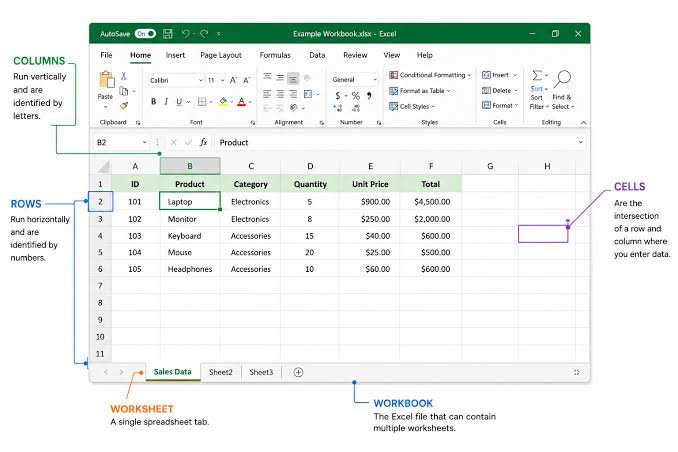
Microsoft Excel is one of the most useful tools for working with numbers, lists, reports and large amounts of data. While many people know the basic features, Excel also has several simple tricks that can make everyday work much faster.
Here are some useful Excel spreadsheet secrets that beginners and regular users can learn.
Select the Entire Spreadsheet Quickly
Instead of selecting cells one by one, you can quickly select the entire worksheet using the small button at the top-left corner of the spreadsheet. You can also use the Ctrl + A shortcut.
This is useful when you want to format, copy or review a large amount of data at once.
Open Multiple Excel Files Together
If you regularly work with several Excel files, opening them one by one can waste time. You can select multiple Excel files and open them together.
This can be especially useful when comparing reports or working with files from different departments.
Move Between Open Excel Files
When several spreadsheets are open, switching between them can become annoying. Keyboard shortcuts can make this easier.
Using shortcuts to move between open files helps you work faster without constantly reaching for the mouse.
Add Multiple Rows or Columns
You don’t have to insert rows or columns one at a time. Select the same number of existing rows or columns that you want to add, then use the Insert option.
For example, selecting five rows and choosing Insert can create five new rows at once.
Move or Copy Data Quickly
Excel allows you to move selected data by dragging it from the edge of the selection. Holding the Ctrl key while dragging can be used to create a copy instead.
This can save time when reorganizing tables.
Remove Blank Cells
Large spreadsheets often contain empty cells that can make data harder to manage. Using filters can help you identify blank entries quickly.
After finding them, you can remove or clean the unnecessary data depending on how your spreadsheet is structured.
Use Wildcards in Search
Excel’s Find feature becomes more useful when you understand wildcards.
The question mark can represent one character, while the asterisk can represent multiple characters. These can help you find information when you don’t know the exact text.
Use Data Validation
Data Validation can control what users are allowed to enter into a cell. For example, you can restrict a field to numbers within a certain range or create a drop-down list.
This helps reduce incorrect data entry.
Use Ctrl + Arrow Keys
When working with large tables, scrolling through hundreds of rows can take time. Pressing Ctrl together with an arrow key can quickly move to the edge of a data range.
It is a simple shortcut that can make navigation much faster.
Transpose Rows and Columns
Sometimes data needs to be changed from rows into columns or the other way around. Excel’s Transpose option allows you to do this without manually entering everything again.
Simply copy the data and use Paste > Transpose.
Combine Text With the & Symbol
The ampersand symbol can combine information from different cells into one cell.
For example, you can combine a first name and last name without typing the complete name again.
Change Text Case Easily
Excel provides functions such as UPPER, LOWER and PROPER to change text formatting.
These are useful when a spreadsheet contains names or other information with inconsistent capitalization.
Keep Zeros at the Beginning
Excel may remove zeros from values such as phone numbers or codes. One simple solution is to treat the entry as text so that the leading zero remains visible.
This is particularly useful for IDs, postal codes and other reference numbers.
Rename Sheets Faster
Instead of opening a menu every time you want to rename a worksheet, you can simply double-click the sheet tab and enter the new name.
Small shortcuts like this can save a surprising amount of time.
Final Thoughts
Excel becomes much easier when you know the small features hidden behind everyday tasks. Shortcuts, Data Validation, Transpose, text functions and faster navigation can help you work more efficiently and keep spreadsheets organized.
