0
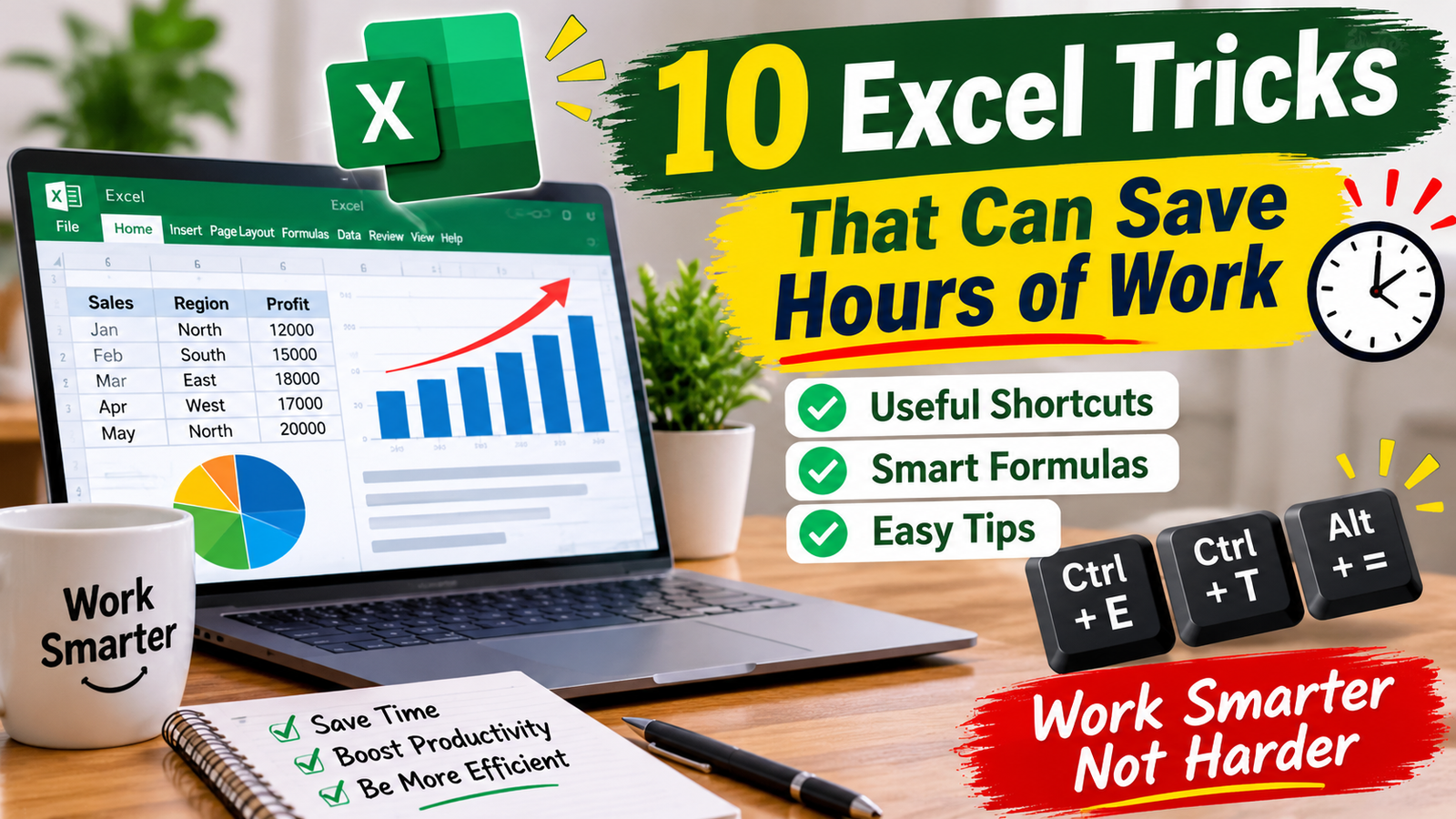
Microsoft Excel is more than just a spreadsheet tool. It is a powerful productivity application that can turn complicated data into organised information within seconds. Whether you are a student, office employee, accountant, data analyst or business owner, learning a few smart Excel tricks can make everyday work much easier.
Many people use Excel regularly but still depend on manual methods for simple tasks. The interesting part is that several built-in features can perform the same work much faster. Here are 10 useful Excel tricks that can improve your productivity and help you work smarter.
Imagine you have a column containing full names and want to separate first names from last names. Instead of writing a formula, type the first example and press Ctrl + E.
Excel automatically recognises the pattern and fills the remaining cells. This feature is particularly useful for organising names, phone numbers and other text data.
Duplicate entries can create confusion in large spreadsheets. Excel offers a simple solution.
Excel will remove repeated records while keeping unique entries.
One underrated Excel shortcut is Ctrl + T. It converts an ordinary data range into a structured table.
The benefits include automatic filters, organised formatting and formulas that can expand with new data. It is especially helpful when managing monthly reports or employee records.
Searching through thousands of records manually is time-consuming. XLOOKUP can help you find specific information quickly.
For example, you can search for an employee ID and automatically retrieve their name, department or salary from another column.
It is a useful alternative to traditional lookup methods.
Working with large spreadsheets often means scrolling through hundreds of rows. The problem is that column headings disappear from view.
Use the Freeze Panes feature under the View tab to keep important headings visible while scrolling.
Want to identify low scores, high sales or pending payments immediately?
Conditional Formatting can automatically highlight cells based on specific conditions. You can use different colours to identify important values without checking every entry manually.
You do not need to type a SUM formula every time you calculate a total.
Select the cells below or beside your numbers and press Alt + =. Excel automatically inserts the SUM formula.
This small shortcut can save considerable time when preparing financial reports.
Filtering information becomes easier with this shortcut.
Press Ctrl + Shift + L to turn filters on or off. You can then sort information, locate specific entries and display only the records you need.
Sometimes copied data contains unnecessary spaces that affect calculations and data matching.
The TRIM formula helps clean text:
=TRIM(A2)
It removes unwanted spaces from text while retaining normal spaces between words.
If you regularly enter information such as department names, payment status or employee categories, drop-down lists can reduce typing errors.
Go to Data, select Data Validation, choose List and enter your preferred options.
Now users can select an option instead of typing it manually.
Excel continues to be useful across different industries because organisations deal with data every day. From banking and finance to human resources, sales, education and operations, spreadsheet knowledge can support a wide range of professional responsibilities.
People preparing for office jobs, banking roles and data-related careers can benefit from practising Excel regularly.
You do not need to learn every advanced formula at once. Start with basic shortcuts, understand common functions and gradually explore PivotTables, dashboards and data analysis.
The real power of Excel is not simply storing information; it is finding faster ways to manage and understand it. A few smart tricks can reduce repetitive work, improve accuracy and make everyday tasks easier.
Instead of spending extra time on manual calculations, start exploring Excel’s built-in features. Sometimes, learning one small shortcut can make a surprisingly big difference in your working day.